Turn on the TV and you see your wallpaper and the apps you use.
Home
As easy as Apple TV.
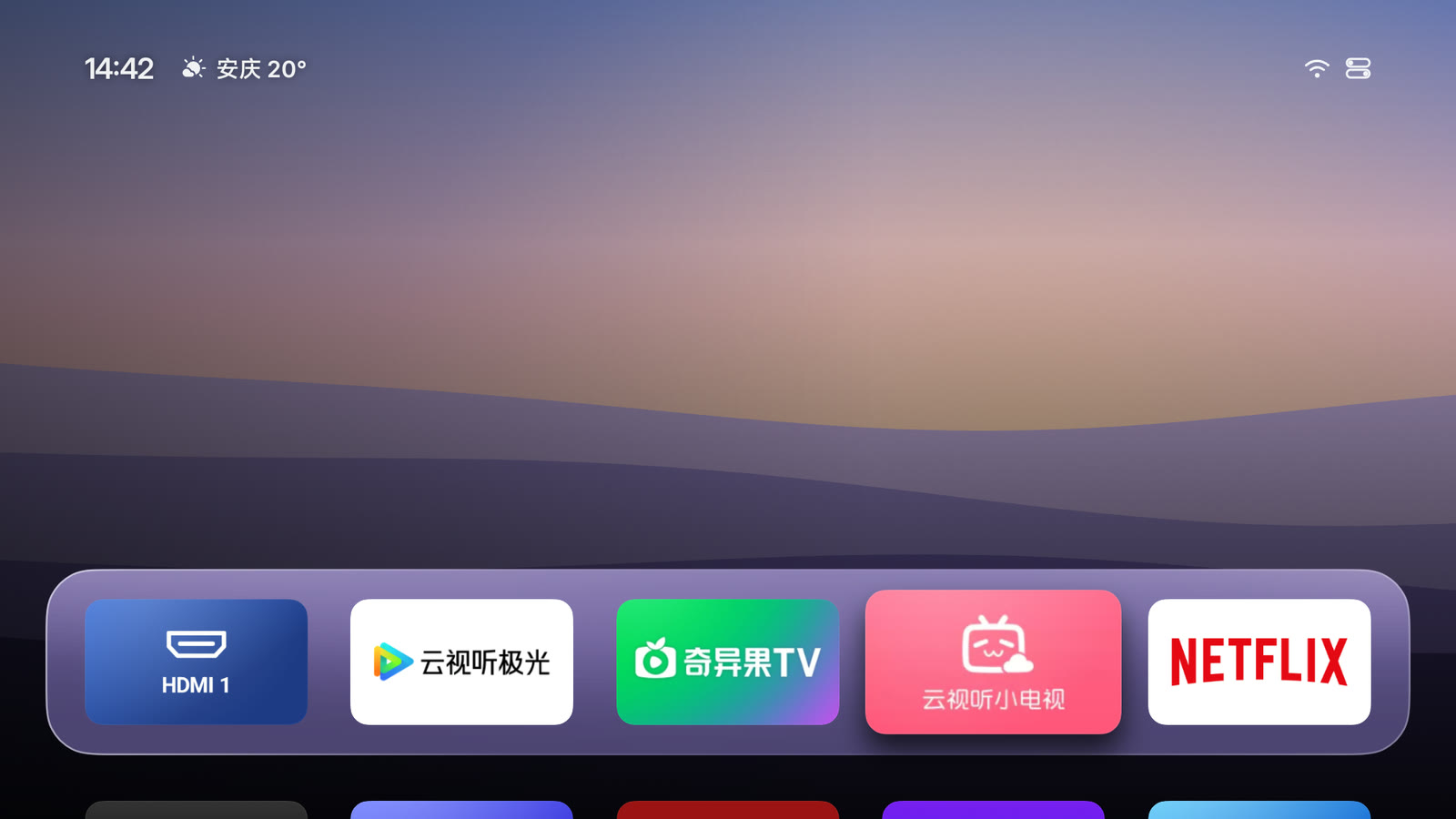
Your favorite apps sit in one row on a glass shelf. The focused one lifts gently and casts a soft shadow.
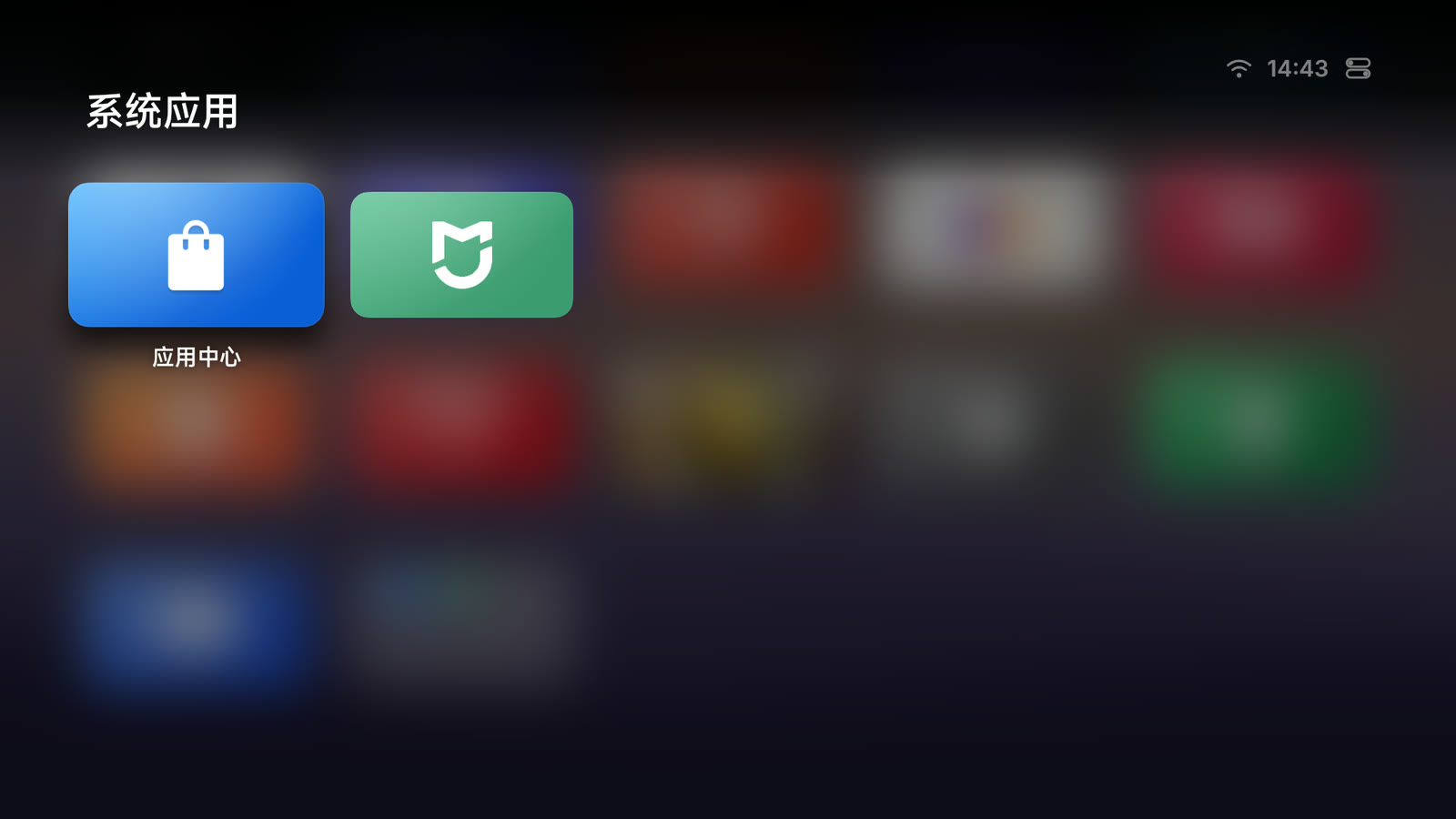
A white ring marks focus, easy to spot from the couch. Hidden system apps like Xiaomi's App Store and Mi Home show up too.
Organize
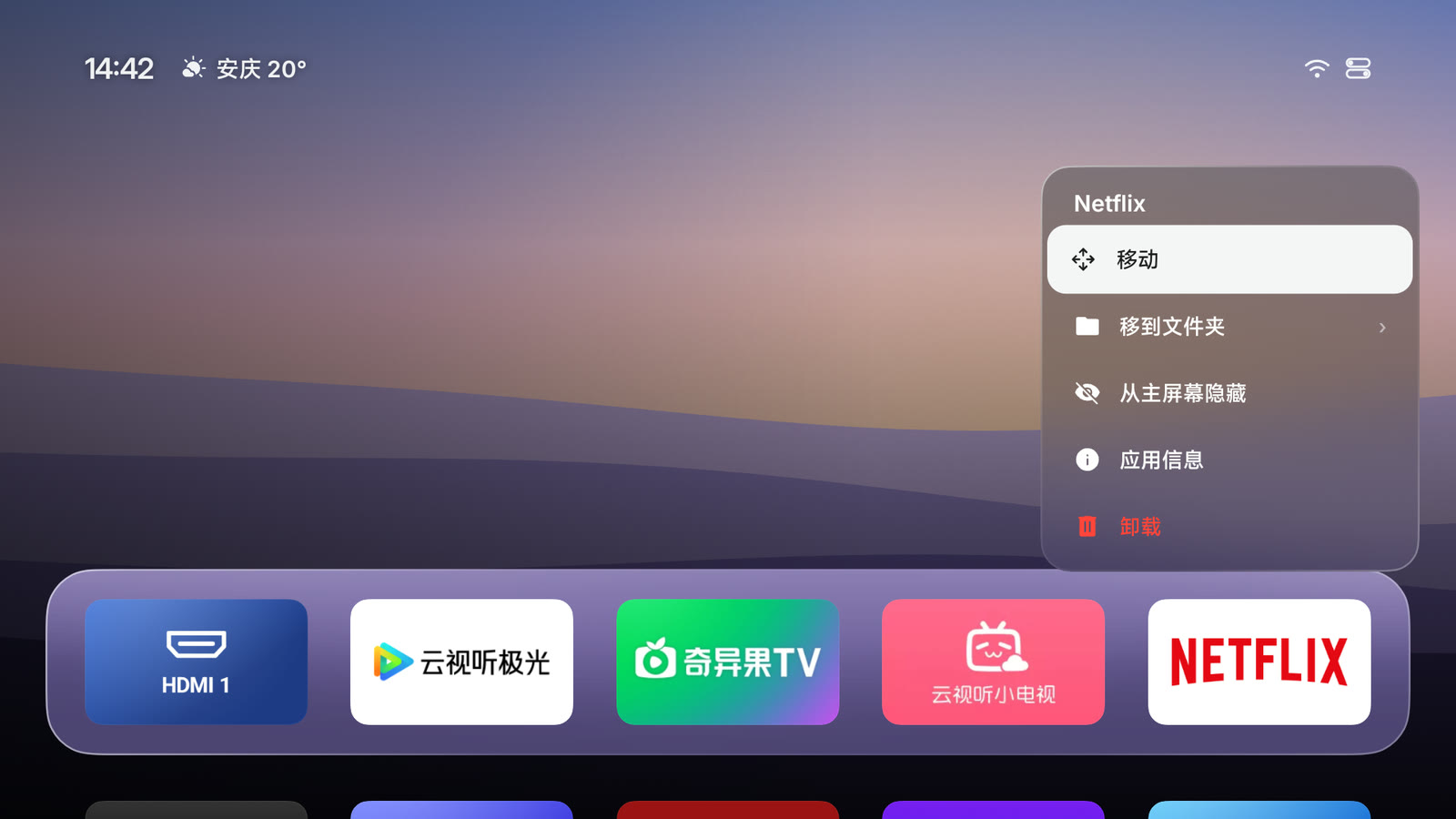
Hold OK to make it yours.
Move, put in a folder, hide, inspect or uninstall any app. Hidden apps wait in Personalize.
Folders
Tuck the TV's own apps into a folder.
Folders sit on Home like any app, as on Apple TV. Press OK to open one.
Control Center
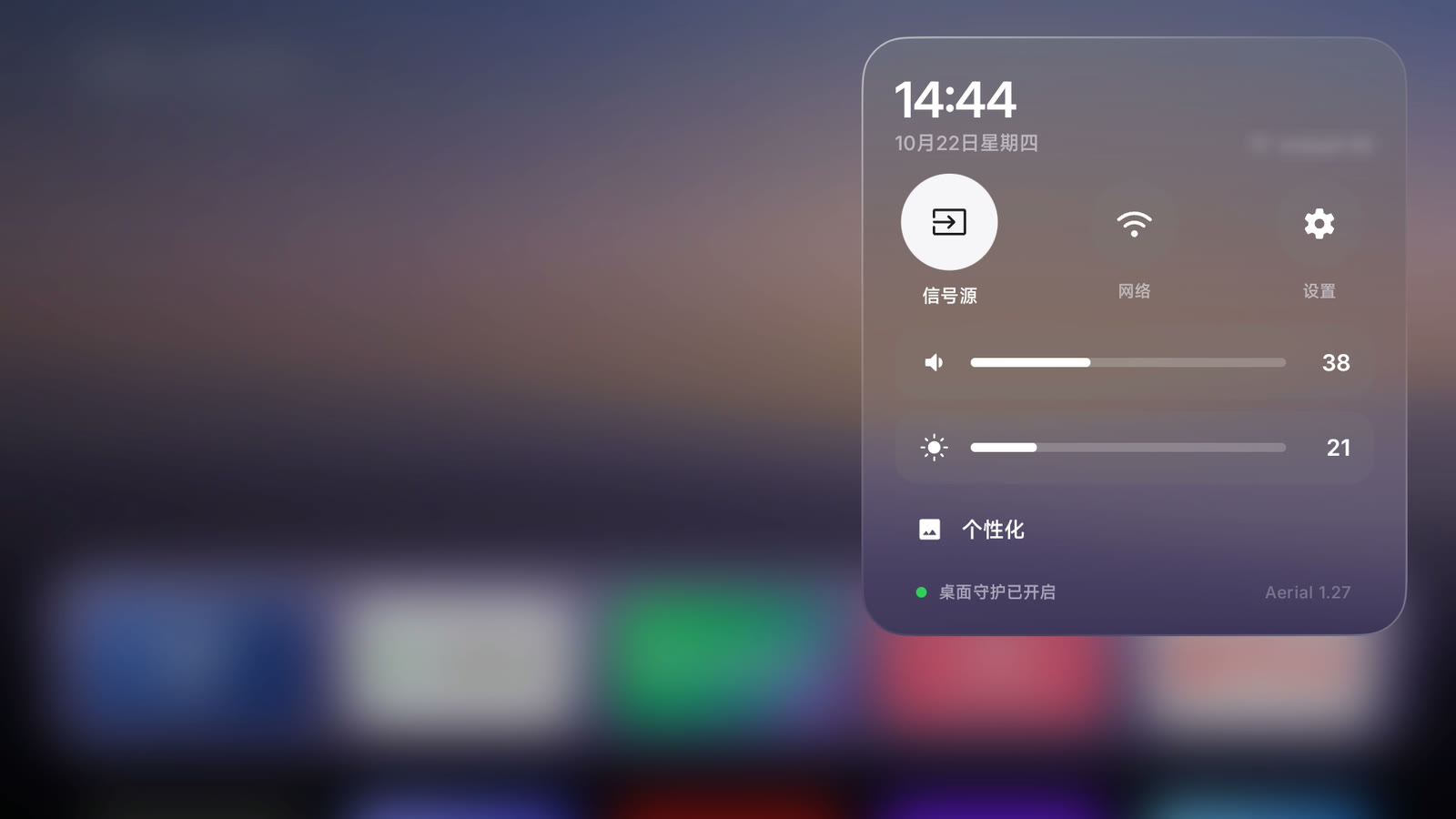
Everyday controls, one button away.
Inputs, network, settings, volume and brightness, all in one place. Pin an HDMI input to Home to switch in one press.
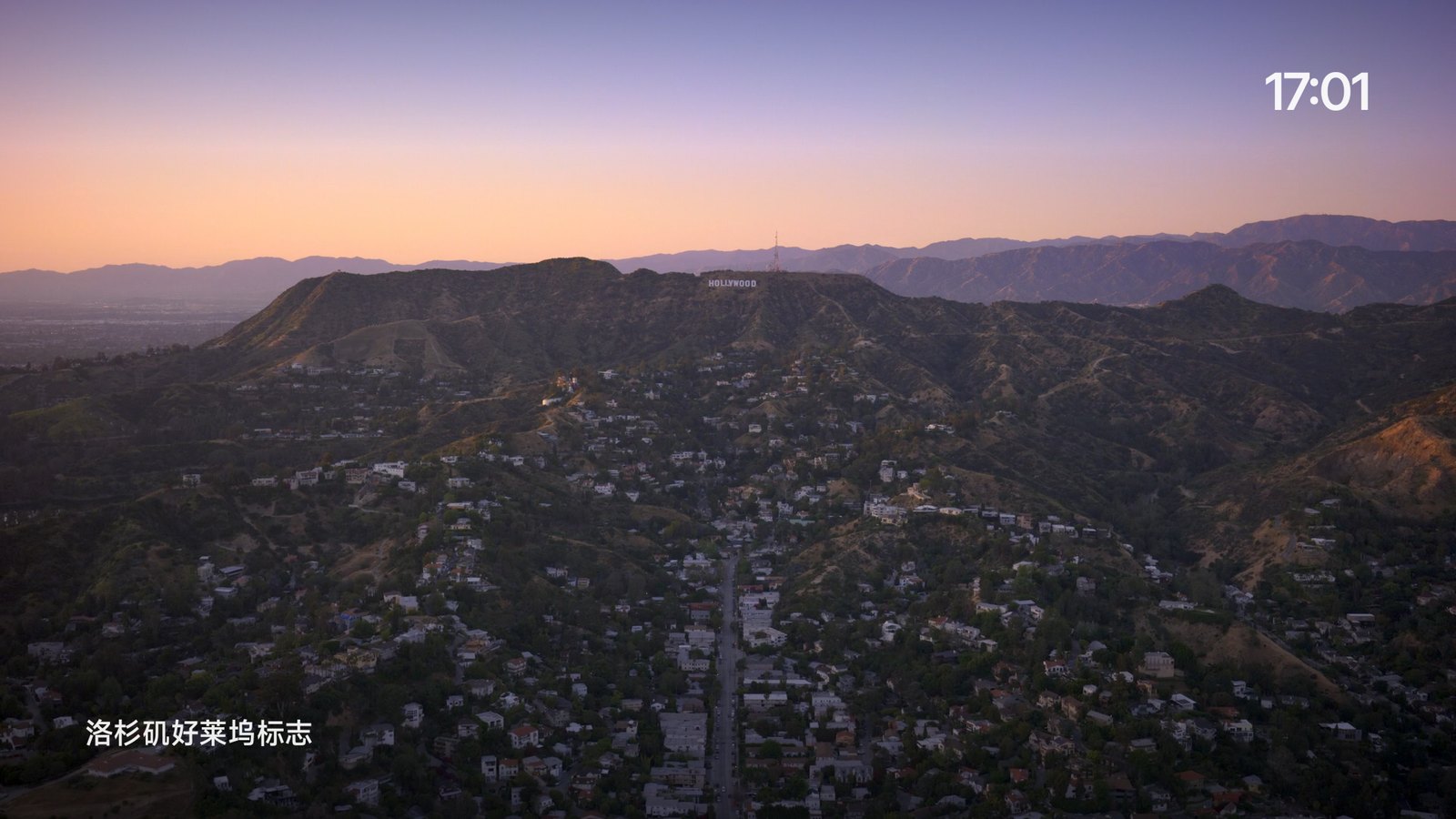
When you're not watching, enjoy the view.
114 aerial films from Apple TV, from orbit to the ocean floor, with place names.
Yosemite National Park
The Hollywood Sign, Los Angeles
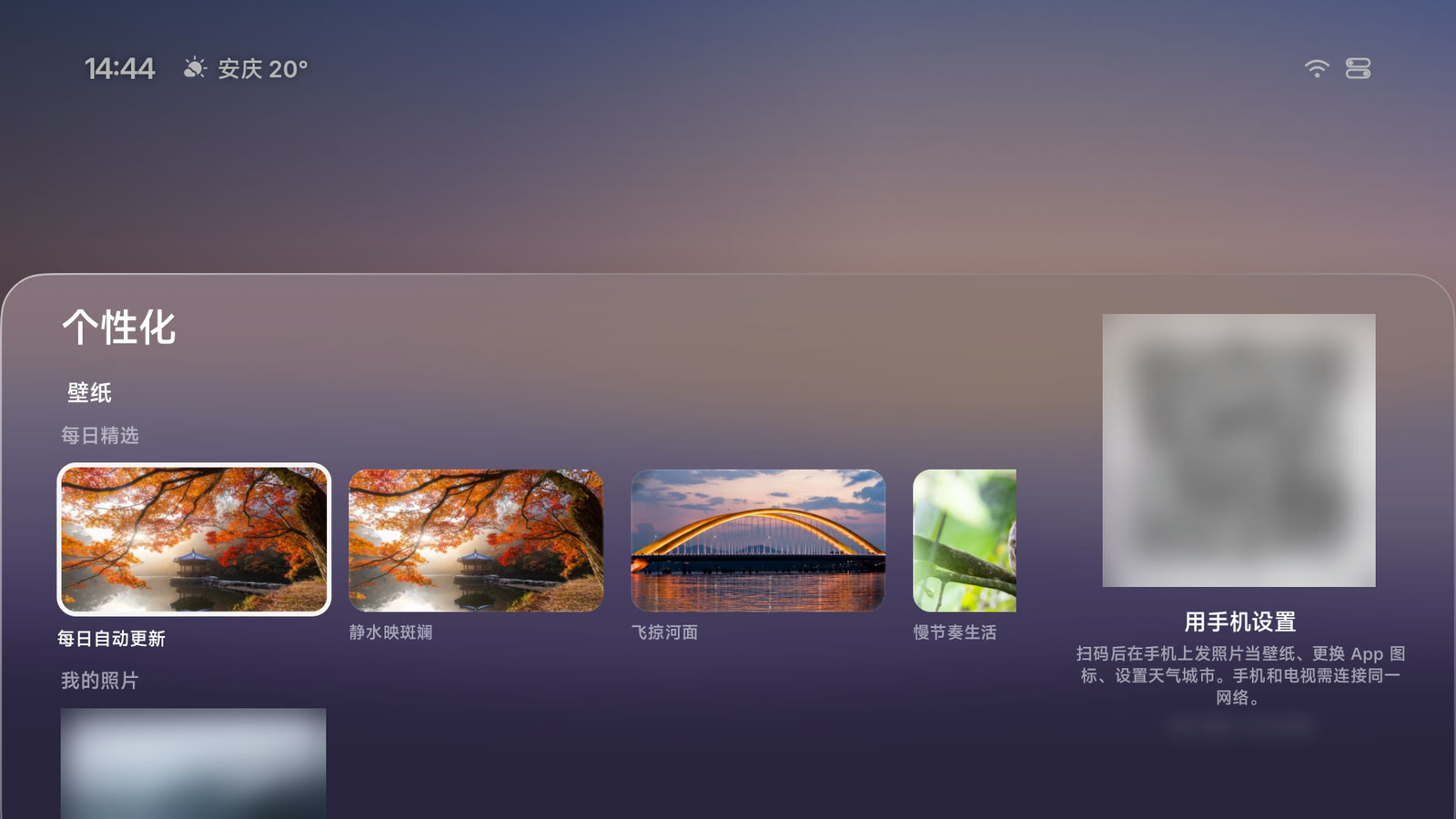
Wallpaper
A new view every day, or your own photos.
Bing's photo of the day, fourteen Mac-style built-ins, or photos from your phone.
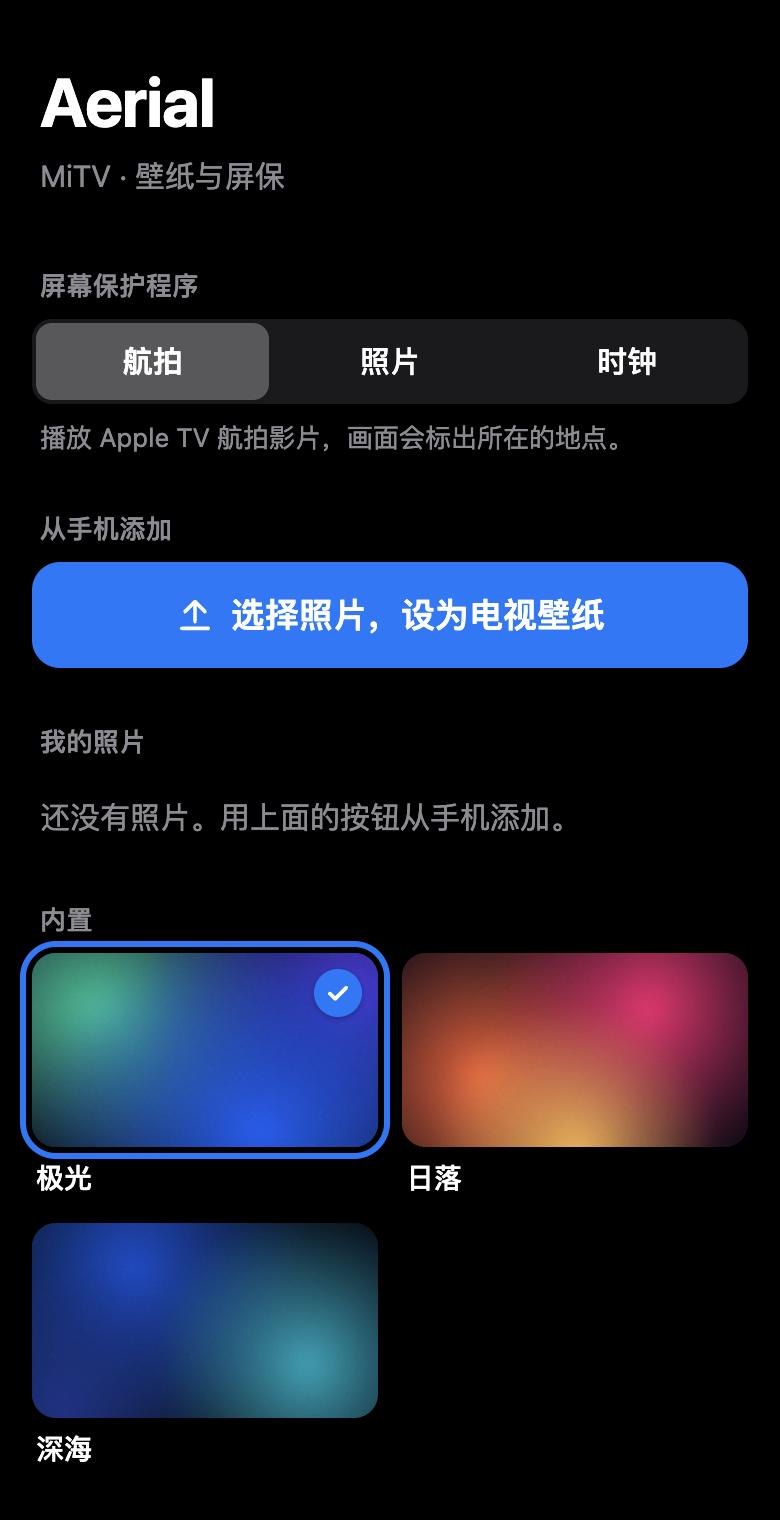
Set up from your phone
Scan. Don't type.
Scan the code on the TV to upload photos, pick a wallpaper or change the screensaver.
Home at boot. Still home after standby.
Most TVs sold in China lock you into the maker's launcher and kill other apps in standby. Aerial works around both, with no root and no system apps disabled.
Owns the Home button
Aerial becomes the default home screen where it can; elsewhere, Home Guard brings it back. The stock launcher is still there.
Back in half a second
Xiaomi TVs force-stop other apps in standby. Android brings Aerial right back.
Survives a power cut
Aerial takes over at boot. The installer gets it past TCL's startup block.
Settings (设置) → About (关于) → press OK on Model (产品型号) until developer mode is on. Then Settings → Account & Security (账号与安全): turn on ADB debugging (ADB 调试) and Install unknown apps (安装未知来源的应用).
Settings (设置) → About (关于) → Device info (本机信息), then quickly press Up, Down, Left, Right. Turn on ADB in the More (更多) group that appears.
Press the Source button on the TV itself. While the source menu is open, press Left, Left, Up, Right on the remote to open the factory menu (海尔工厂菜单), then set ADB 调试开关 (ADB debugging) to on. Change nothing else.
Settings (设置) → System (系统) → About (关于本机) → Model (设备型号), press Up, Up, Right, Right, then OK.
Settings → Device Preferences → About → press Build (not Android version) 7 times, then turn on USB debugging in Developer options.
2Enter the TV's IP address
It's under Settings → Network. Your computer must be on the same network.
3Pick a way to install
Paste this into an agent that can run commands on your computer, such as:
Claude Code
Codex
Cursor
WorkBuddy
Trae
Phone apps and web chats only tell you the steps; they can't install it.
Run it in a macOS or Linux terminal; it downloads adb if you don't have it. On Windows, use an agent.
When the TV asks to allow debugging, choose Always allow. On TCL, accept the 多屏互动 (screen sharing) prompt with 同意 (Agree).
FAQ
Can I install it straight from a web page?
No. Browsers can't reach the TV's ADB. The agent prompt or the one-line command is the easiest way.
Can it break my TV? How do I undo it?
No. Aerial doesn't touch system apps; it grants itself a few permissions and changes the home screen and screensaver settings. To undo it, replace the final bash in the one-line command with bash -s restore; add --uninstall to remove Aerial too. With an agent, give it this:
My firmware won't install home-screen apps?
Install the build that doesn't declare itself a home screen: add -s guard to the end of the one-line command, or download aerial-guard.apk for a manual install.
Do my apps, subscriptions and old home screen stay?
Yes. Aerial only replaces the home screen; apps, accounts and subscriptions stay, and the old home screen opens from the app list. A boot ad comes from the firmware, so it stays.
The agent says it's installed, but nothing changed on the TV?
Some agents report success without running anything. Ask for the raw output of the "Check" commands in the install guide: the last one must include app.orchard.tv.
What permissions does it use?
WRITE_SECURE_SETTINGS turns Home Guard back on if it's switched off. The notification listener lets Android restart Aerial; it reads no notifications. Accessibility only sees which window is in front, not what's on screen. Location only shows your Wi-Fi name.
Where do the aerial films come from? How much data do they use?
They stream straight from Apple's servers in 1080p, at about 15–20 Mbps. If they can't load, Aerial switches to the photo screensaver.
My TV isn't listed. Will it work?
Probably. Stock Android TV and Google TV are the easiest. LG webOS, Samsung Tizen, Huawei Vision (HarmonyOS) and Android 4.4 or older aren't supported. If something goes wrong, open an issue on GitHub with your TV model and the install output.



 Claude Code
 Codex
Codex Cursor
 WorkBuddy
 Trae
Trae